How to Find Scheduled Posts on LinkedIn in 2026
You scheduled a LinkedIn post for Tuesday morning, but now you can't find it. It's missing from your feed, your activity log, and the list of posts you've...
By Ian Kiprono
You scheduled a LinkedIn post for Tuesday morning, but now you can't find it. It's missing from your feed, your activity log, and the list of posts you've already published. You remember setting the time, yet there's nothing obvious to open and check.
The deadline is approaching, and you're stuck between leaving it alone and publishing again. Leaving it alone risks a missed post. Publishing again risks a duplicate. If you manage both a personal profile and a company Page, you may also be searching the wrong account without realizing it.
Where Scheduled LinkedIn Posts Actually Hide
Where to look depends on which account scheduled the post.
| Account type | Where to look | Scheduling window | Notes |
|---|---|---|---|
| Personal profile | Start a post, clock icon, View all scheduled posts | 10 minutes to 3 months ahead | Events, Jobs and Services cannot be scheduled |
| Company Page | Page posts, Start a post, View all scheduled posts | 1 hour to 3 months ahead | Requires super admin or content admin role |
| Third-party scheduling tool | The tool's own queue or calendar | The tool's supported scheduling horizon | Check the connected LinkedIn account and time zone |
| LinkedIn mobile app | Check the current composer for scheduling controls | 10 minutes to 3 months ahead for personal profiles; 1 hour to 3 months ahead for Pages | Queue access depends on the account type |
LinkedIn's native scheduled queue lives inside the post composer, not in the history of published content. The path changes depending on whether the post belongs to a personal profile, a company Page, or a third-party tool.
An empty queue in one place doesn't mean the post is gone. Check the account identity that scheduled it, then check the tool or queue associated with that identity.
A growing queue needs a review habit
As queued content accumulates, a simple publishing record helps distinguish a saved draft from a scheduled post. Track the destination, opening line, intended publication time, and status. That record also makes it easier to confirm which identity owns the post before you edit, reschedule, or delete it.
Practical rule: Find the queue that owns the post before creating a replacement.
For a repeatable planning process, see this guide to scheduling a LinkedIn post.
Finding Scheduled Posts on a Personal Profile
To find scheduled posts on LinkedIn for your personal profile, open the composer rather than your profile history.
- Click “Start a post.” You'll find it at the top of the LinkedIn homepage. This opens the post-composer window.
- Select the clock icon. Look in the lower-left corner of the composer to open the scheduling dialog.
- Choose “View all scheduled posts.” It's in the lower-left of that dialog. You don't need to create another post to inspect the queue.
- Review the “Scheduled posts” page. Check the previews for the item you're trying to locate.
The visual below illustrates the composer's scheduling flow. To inspect an existing item, use “View all scheduled posts” instead of choosing a new publication time.
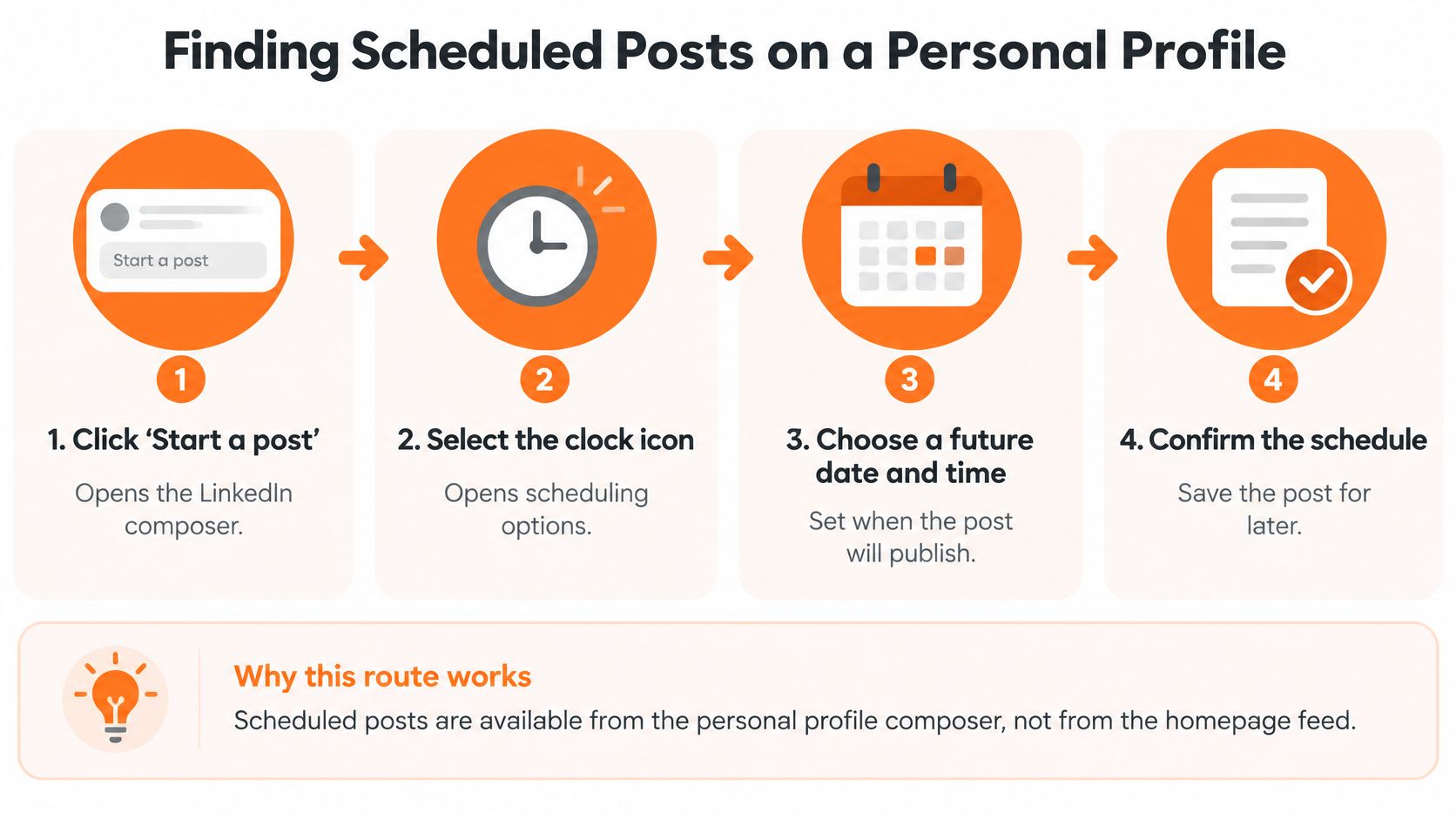
LinkedIn's personal-profile scheduling guide documents a window from 10 minutes to 3 months ahead, with the selected time rounded to the nearest available interval; it also excludes Events, Jobs, and Services.
Those boundaries are useful when checking whether an item was eligible for scheduling. Selecting a date isn't enough if the publishing format isn't supported or the intended time isn't available.
What to check in each preview
- Text: Match the opening line to your final draft, not just the topic.
- Date and time: Read the saved timestamp. Don't rely on what you remember selecting.
- Media: Confirm that the expected image, document, or other attachment is present.
- Destination: Make sure you're reviewing the account that should publish it.
Say you prepared a newsletter teaser and a separate commentary post about the same subject. Similar opening lines can make them easy to confuse. Compare the actual wording before editing or deleting either item.
For a video walkthrough of the interface, use the player below.
A healthy queue contains recognizable content, readable timestamps, and the media you intended to publish. After scheduling something new, reopen the list and confirm that its preview appears. The LinkedIn post scheduling guide is useful when you need to rebuild the item rather than locate an existing one.
Finding Scheduled Posts on a Company Page
Say a teammate prepares an announcement, but schedules it from their personal profile. You open the company Page's queue and find nothing. Both people may have completed a scheduling workflow, but only one publishing identity owns that announcement.
Page scheduling requires the Page admin interface, not access to a personal LinkedIn account.
The profile-versus-Page distinction is the first thing to resolve when comparing queues.
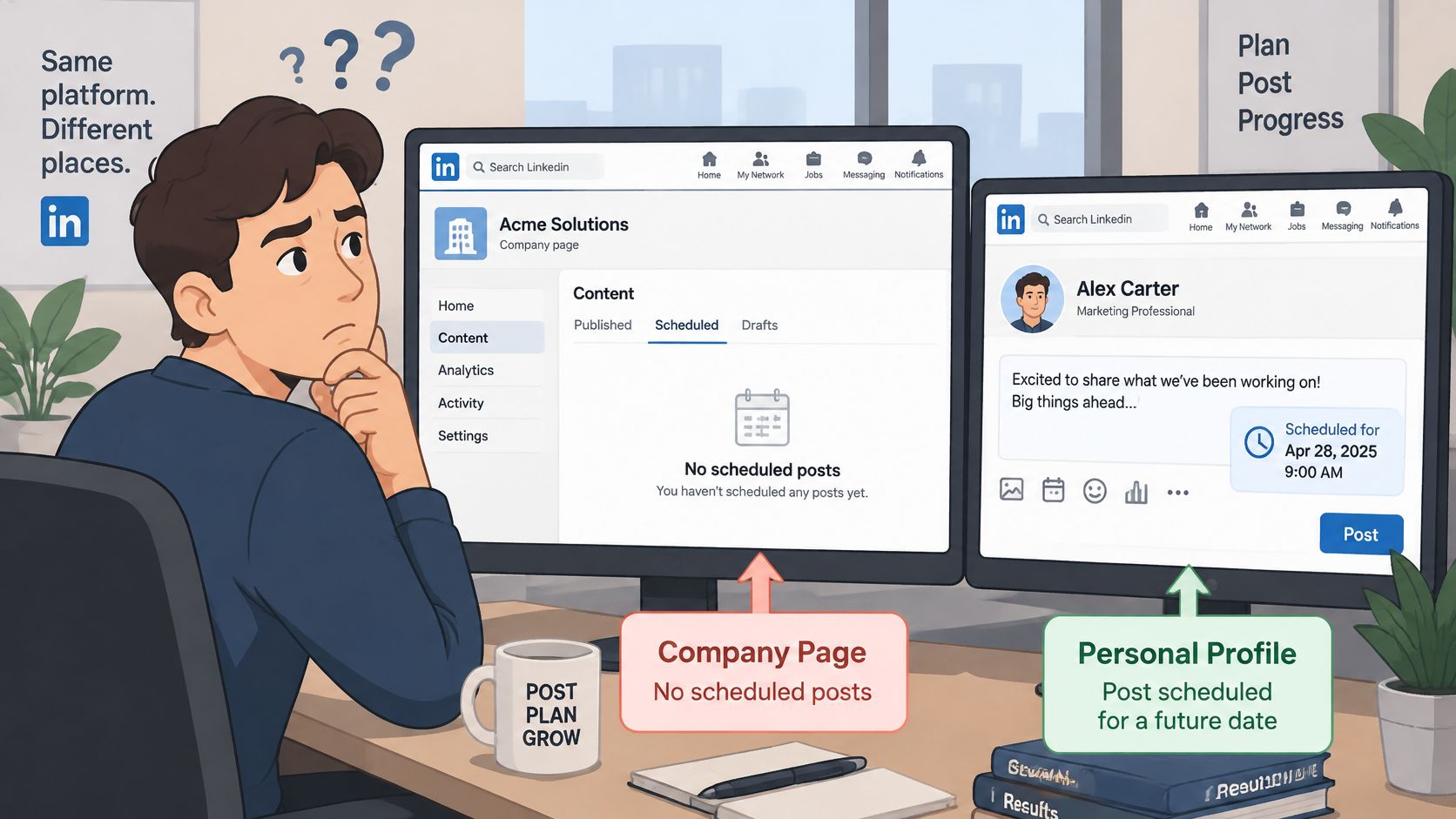
- Open the Page's admin view. You need a super admin or content admin role.
- Select “Page posts” from the left menu.
- Choose “Start a post,” open the scheduling control, and select “View all scheduled posts.”
Having permission to schedule your own posts doesn't establish that you can inspect organizational content. If you can't reach the Page queue, check your Page role before trying different personal-profile menus.
Shared access changes the team workflow
LinkedIn's Page scheduling documentation sets the Page window at 1 hour to 3 months ahead, compared with a personal-profile minimum of 10 minutes, and confirms that administrators can manage posts scheduled by other Page admins.
Once an item is located, authorized Page administrators can publish it immediately, edit it, change its date and time, or delete it. Shared access means the person who originally scheduled the post doesn't have to perform every correction.
That flexibility needs clear ownership. If an editor changes the wording while another admin adjusts the date, both should record what changed so the next reviewer knows which version is approved.
The scheduling admin and the reviewing admin can be different people. The publishing identity still needs to be the intended Page.
Before searching, answer a concrete question: should this content appear under a person's name or the company's name? If it belongs to the company, confirm the Page identity and administrative access first. That avoids troubleshooting a permissions problem as though it were a missing draft.
Editing, Rescheduling or Deleting a Queued Post
Which queued-post action to use
| Action | Use it when | What changes | Watch for |
|---|---|---|---|
| Edit post | Copy, visibility or commenting controls need changes | Content and available settings update before publication | Reopen the list to confirm the item is still queued |
| Modify schedule | Only the publish date or time needs to change | The publish time moves | New time must stay inside the scheduling window |
| Delete | The draft should be rebuilt from scratch | The item is removed before it publishes | Copy the text out first; don't assume a recovery option exists |
The decision is about what needs correcting. A typo calls for Edit post. A postponed announcement calls for Modify schedule. A draft that no longer fits the campaign may be better removed and rebuilt.
LinkedIn's scheduled-post help documentation confirms the More-menu editing and scheduling controls; for Pages, editable settings include content, visibility, commenting controls, and the brand-partnership indication.
Don't assume every Page setting is also available on a personal profile. Use the controls displayed for the item you're managing.
Will an edit keep the post queued?
After saving, reopen View all scheduled posts and inspect the result. Confirm that the item remains present, contains the revised copy, and shows the intended timestamp.
Treat editing and rescheduling as separate operations. Changing the wording isn't a request to move publication, and moving publication won't correct the wording.
Does changing visibility affect reach?
Visibility determines who can access the post, so choose it according to the intended audience. LinkedIn's documentation doesn't provide a reach figure for changing a scheduled post's visibility. There's no supported percentage to promise.
For removal, choose Delete from the item's More menu before it publishes. Preserve anything you may want to reuse first.
- Save the correction: Complete the interface's save or scheduling action.
- Reopen the queue: Verify the saved item rather than trusting the closed composer.
- Inspect the preview: Check copy, attachments, audience settings, and timestamp.
- Preserve the draft: Copy reusable text and retain the original media before deleting.
If you're evaluating tools because these checks are becoming cumbersome, the LinkedIn scheduler comparison can help you compare queue-management workflows. Prioritize clear previews and easy corrections over features you won't use.
Checking the Queue on Mobile and Third-Party Tools
The LinkedIn documentation cited here establishes the desktop routes, but doesn't confirm the current mobile queue path. Don't assume an iPhone or Android menu matches the desktop layout. If the app doesn't expose a clear scheduled list, use the documented desktop route rather than guessing menu names.
Outside schedulers generally hold pending posts in their own calendar or queue until they send them to LinkedIn. Switching tools doesn't automatically transfer that backlog.
- Confirm the connection: Check the exact personal profile or Page attached to the tool.
- Inspect the time zone: Compare the scheduled timestamp with your publishing plan.
- Check format support: Verify what the tool can send and what LinkedIn accepts.
- Record the backlog: Screenshot the queue and note pending schedules before switching tools.
Say a creator starts using LinkedIn's native scheduler after planning content in another service. The older posts may still be waiting in that service. Republishing them natively without checking could create duplicates.
For broader tool selection, the social media scheduling recommendations from Grou offer another comparison resource. For publisher-specific mobile access, consult the mobile app documentation, not an assumed LinkedIn app workflow.
Keep Substack Notes alongside the LinkedIn plan
Substack's official product announcement confirms Notes scheduling on the web, iOS, and Android: click the calendar icon on the web, or tap the three-dot menu and select “Schedule” on mobile. Times use the creator's local time zone, and scheduled Notes remain editable in the Notes Drafts tab until publication.
Check that tab during your queue review. List the Notes planned for each week beside the LinkedIn posts so the newsletter teaser and follow-up commentary don't drift apart.
LinkedIn's native scheduling limits aren't a specification for outside tools. Check each tool's own available dates and publishing behavior.
Fixing a Scheduled Post That Seems to Be Missing
An empty Page queue doesn't prove a scheduling failure. The first fix is to confirm the active publishing identity and Page role, not to create another copy.
Scheduled post symptoms, causes and fixes
| Symptom | Likely cause | Fix |
|---|---|---|
| Scheduled Page post missing | Wrong publishing identity or no Page role | Confirm the Page identity and super admin or content admin role, then re-enter Page posts |
| Cannot pick a time within the next hour on a Page | Page minimum is 1 hour ahead | Choose a time at least 1 hour from now |
| Personal post cannot be scheduled | Event, Job or Service format | Publish now or use a supported format |
| Time more than 3 months away is rejected | Outside the 3-month window | Reschedule closer to the publication date |
| Post not visible after scheduling | Cause not documented by LinkedIn | Reopen View all scheduled posts and count the items |
LinkedIn's Page management help documents the super admin or content admin context and a scheduling window from 1 hour to 3 months ahead. It doesn't provide empirical scheduling success rates or failure statistics.
That distinction matters. A rejected date is an eligibility problem. A queue you can't access may be a permissions problem. A missing preview after an apparently completed save needs further checking, not an invented explanation.
Diagnose before rebuilding
Start with identity, then permissions, then the intended publication time. For organizational content, return through Page posts rather than searching the personal composer.
If you find the item and need to repair its content, open its More menu, select Edit post, revise it, and select Schedule to save. Inspect the queued version afterward.
Before duplicating a post: Compare the pending queue with your publishing plan and check whether the original has already appeared publicly.
For an item that still isn't visible, use your own records. Compare opening lines, destinations, and timestamps rather than relying on the topic alone. Count the queued items against the content you planned to publish.
Validate each timestamp against the time zone you intend to use, then confirm publication after the scheduled time. These checks won't explain every failure, but they establish what's present, what's missing, and what has already gone live.
Confirm Your Queue Before the Next Deadline
A scheduling workflow isn't finished when you select a date. It's finished when you can reopen the queue, recognize the content, and confirm that it's assigned to the intended destination.
Your action today is simple: open the queue and count the items against your publishing plan. Resolve any mismatch before preparing replacements. For every correction, choose whether the content needs editing, the timing needs changing, or the draft needs removing.
Make the review repeatable
- Name the destination: Record the personal profile, company Page, or outside scheduler.
- Match the draft: Compare the preview with the approved wording and media.
- Verify the change: Reopen the queue after editing or rescheduling.
- Confirm publication: Check the live post instead of treating a scheduled item as delivered.
A content creation schedule template can give that review a consistent place in your routine. Keep planned content, queued content, and published content distinguishable.
For writers publishing across LinkedIn and Substack, a shared distribution workflow can reduce manual rewriting and repeated calendar checks. Repurpose a long-form article into a useful Note and a platform-specific LinkedIn post, rather than pasting the same excerpt everywhere. Faster production helps you distribute more consistently, but audience growth still depends on whether readers find the content useful.
LinkedIn's Page scheduling guide allows Page posts to be queued up to 3 months ahead and confirms automatic publication at the selected date and time. A filled calendar still needs review before the next deadline.
Narrareach offers scheduling for LinkedIn posts and Substack Notes from one place, plus repurposing of long-form articles into platform-specific content so you can spend less time copying drafts between tools. If you're ready to try that workflow, visit Narrareach and organize your upcoming distribution. If you'd rather keep using native scheduling, bookmark this guide and use it for your next queue check.