How to Turn a Blog Post Into a LinkedIn Carousel (3 Ways)
Three ways to turn a blog post into a LinkedIn carousel: by hand, with ChatGPT and a design tool, or in one click with Narrareach. With a real example.
By Ian Kiprono
Quick answer: There are three ways to turn a blog post into a LinkedIn carousel. Design the slides yourself in Canva or Google Slides and export a PDF. Have ChatGPT write the slide outline and paste it into a carousel template. Or pick the article in Narrareach, which writes five slides from it, builds the PDF, writes the caption and schedules the post to LinkedIn in one click. Either way, a LinkedIn carousel is a PDF uploaded as a document post, 1080 x 1350 pixels per slide works well, and the article link goes in the post text.
A blog post reaches the people who already read your blog. A LinkedIn carousel reaches the people who scroll past links but stop for something they can swipe through. The ideas are the same. Only the format changes, and that format is simple: five or so slides, one idea each, saved as a PDF.
This guide compares the three ways to make that PDF from an article you already wrote, from fully manual to one click, with a real carousel Narrareach generated from a Substack post.
What is a LinkedIn carousel?
A LinkedIn carousel is a document post. You upload a PDF, LinkedIn shows each page as a slide, and readers swipe through them in the feed. LinkedIn accepts PDF, PPT, PPTX, DOC and DOCX files up to 100 MB and 300 pages, and every page has to be the same size (LinkedIn Help: Upload and share documents). Viewers can also download the document as a PDF.
For a carousel made from a blog post, the numbers that matter are smaller than LinkedIn's limits:
- Slides: five is enough for most articles: a hook, three ideas and a closing point.
- Size: 1080 x 1350 pixels (4:5 portrait) fills the most screen on a phone.
- Text: a headline and two or three sentences per slide.
- Link: in the post text, where readers can click it.
The three ways, compared
| By hand | ChatGPT | Narrareach | |
|---|---|---|---|
| Ideas | You | ChatGPT | Narrareach |
| Design | You | You | Narrareach |
| You | You | Narrareach | |
| Caption | You | You | Narrareach |
| Posting | You | You | Scheduled |
| Time | 1 hour+ | 20–40 min | 1 click |
| Best for | One-offs | Now and then | Every article |
Way 1: Make the carousel by hand
Doing it by hand gives you total control over every word and pixel, and it is how you learn what a good carousel looks like.
- Pick five ideas from the article. Slide 1 is the hook: the article's main promise, rewritten as a headline. Slides 2 to 4 are the three ideas a reader should leave with. Slide 5 is the takeaway or the question the article answers.
- Cut each idea to a headline and two or three sentences. If a point needs a paragraph, it belongs in the article, not on a slide.
- Design the slides at 1080 x 1350. In Canva, start from a LinkedIn carousel template. In Google Slides, set a custom page size of 1080 x 1350 pixels. Keep one font pair and one accent colour across all five.
- Export a PDF. Check every page is the same size and the file is well under 100 MB.
- Post it on LinkedIn. Start a post, choose Add a document, upload the PDF and give it a title. Write the post text around the article's main point and put the article link there.
For more on choosing the ideas and how much text each slide can hold, see how to turn a blog post into a carousel.
Way 2: Use ChatGPT and a design tool
The slow part of a carousel is deciding what goes on each slide. ChatGPT can do that first pass in seconds. Paste the article and use a prompt like this:
Turn this article into a five-slide LinkedIn carousel. Slide 1: a hook headline under 12 words. Slides 2 to 4: one idea each, a headline under 10 words and two sentences under 40 words. Slide 5: the main takeaway. Use only claims from the article. Then write a LinkedIn post of under 150 words to go with it.
Then:
- Read the outline against the article and fix anything ChatGPT added that you did not say.
- Paste each slide into a carousel template in Canva or another design tool.
- Export the PDF, upload it to LinkedIn as a document and paste in the post text with your link.
This roughly halves the time of doing it by hand. You are still the one moving text between tools, exporting files and posting.
Way 3: Turn the article into a LinkedIn carousel in one click with Narrareach
Narrareach starts from the article itself, so there is nothing to paste or export:
- In Notes, open Generate and choose LinkedIn Carousel.
- Choose the article and a style: Editorial, Illustrated or Minimal.
- Click Generate.
Narrareach picks the five ideas from the article, writes a headline and short body for each slide, and sets them on 1080 x 1350 slides. It builds the PDF LinkedIn needs and writes the caption with the article link in it. It suggests an SEO title for the first slide from your article, and you can add art direction or a different link before you generate.
Your part is the final say. Look over the slides and caption, approve them, pick the date and time, and Narrareach schedules the carousel to LinkedIn. The same article can also become an Instagram and TikTok carousel or a Pinterest Pin from the same menu.
A real example: one Substack post, one LinkedIn carousel
This carousel was generated from the Substack post Can You Grow on Substack Without Spending Your Life on Notes? in the Editorial style. The slides below are exactly as Narrareach produced them.
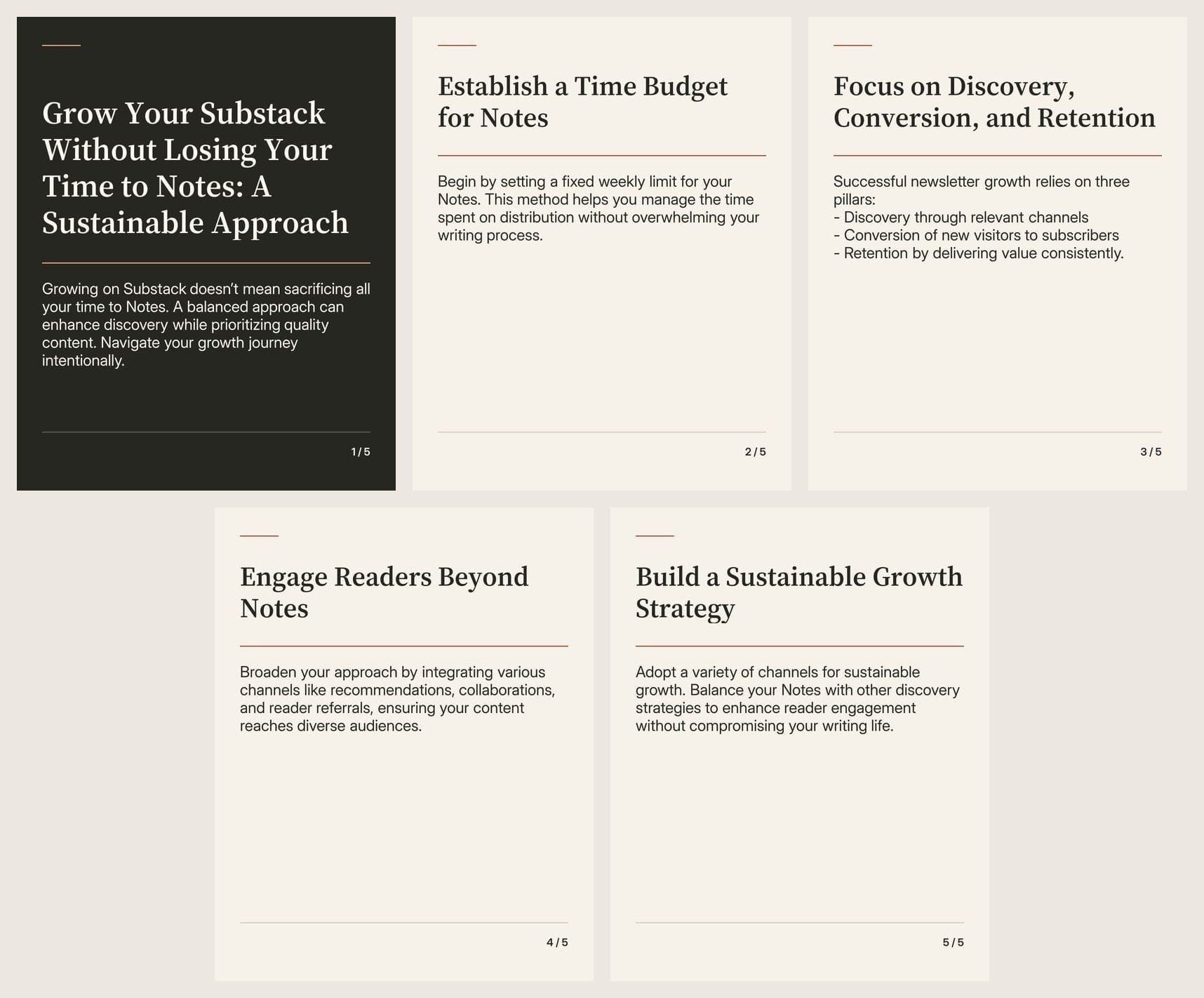
How the article became five slides:
- Slide 1, the hook: the article's question became a promise: "Grow Your Substack Without Losing Your Time to Notes: A Sustainable Approach."
- Slides 2 to 4, the ideas: a weekly time budget for Notes, the three parts of growth (discovery, conversion and retention), and the channels beyond Notes: recommendations, collaborations and reader referrals.
- Slide 5, the takeaway: balance Notes with other ways readers find you.
The finished PDF was 563 KB, far inside LinkedIn's 100 MB limit, and the caption ended with the link to the Substack post.
What makes a blog post carousel work on LinkedIn?
- The first slide sells the swipe. It shows in the feed before anyone taps, so it carries the article's strongest promise, not its title by default.
- One idea per slide. A slide that needs a second idea needs a second slide.
- The words come from the article. A carousel is a trailer for the piece. New claims belong in a new post.
- The link lives in the post. Readers who want the full argument click through from the post text.
- Every article gets one. A carousel per post turns a publishing habit into a LinkedIn habit, which is where one-click generation pays off.
Frequently asked questions
How do I turn a blog post into a LinkedIn carousel?
Pick five ideas from the post, write a headline and two or three sentences for each, design them on 1080 x 1350 slides, export a PDF and upload it to LinkedIn as a document post with the article link in the text. Narrareach does all of this from the article in one click and schedules the post.
Can I turn a blog post into a LinkedIn carousel automatically?
Yes. In Narrareach you choose the article and a style, and it writes the slides, builds the PDF, writes the caption and schedules the carousel to LinkedIn once you approve it.
What size should a LinkedIn carousel be?
1080 x 1350 pixels (4:5 portrait) is the most common choice because it fills a phone screen. LinkedIn requires every page in the PDF to be the same size and the file to be under 100 MB and 300 pages.
How many slides should a LinkedIn carousel have?
Five works for most blog posts: a hook, three ideas and a takeaway. Longer carousels suit step-by-step guides where each step needs its own slide.
Is a LinkedIn carousel a PDF?
Yes. LinkedIn carousels are document posts, and PDF is the format LinkedIn recommends for the best upload quality. Narrareach builds the PDF for you.
Can I schedule a LinkedIn carousel?
Yes. Narrareach schedules the PDF carousel to LinkedIn with its caption at the date and time you choose, alongside the rest of your posts.
Which Narrareach plan includes LinkedIn carousels?
Revenue Writer ($39/month) and Full Agentic Mode ($89/month). Every plan starts with a 7-day free trial with no credit card required.
Start with the article you already wrote
The ideas for your next ten LinkedIn carousels are already in your archive. Pick the post you are proudest of and turn it into five slides by hand, with ChatGPT, or in one click with Narrareach.