Smart Scheduling Login: Sign in and Fix Errors Fast
It's 7:40 a.m. Three Substack Notes and a LinkedIn post are supposed to reach readers this morning, but the sign-in page keeps sending you back to the email...
By Ian Kiprono
It's 7:40 a.m. Three Substack Notes and a LinkedIn post are supposed to reach readers this morning, but the sign-in page keeps sending you back to the email field. Your password manager fills the form, you press the button, and nothing changes.
Maybe the reset email never arrives. Maybe the two-factor code lands after it expires. Or you've finally reached the dashboard, only to find a destination marked as needing attention and yesterday's post still waiting. You don't want another troubleshooting project. You want to know whether your writing is safe, what will publish, and what you can fix without disturbing the queue.
When the Login Screen Blocks Your Publishing Day
A smart scheduling login problem has two separate gates: access to the scheduler account and authorization to publish through each connected destination. Passing the first doesn't prove the second still works.
Say you batch 12 Notes each week and lose 40 minutes chasing a sign-in problem. The immediate cost is time, but the more frustrating consequence is uncertainty: should you publish manually, or will the queued version appear later and create a duplicate?
Don't assume a missed morning slot automatically means lost engagement. Your readers' habits determine the best publishing window. The concrete problem is that the post didn't appear when you intended.
Protect the queue first: Keep existing scheduled items intact until you know whether they failed, remain pending, or already published.
A reset password won't repair an expired destination authorization. Reconnecting Substack won't fix a browser that refuses to retain your scheduler session. Start by getting into the account, identify the error, verify the destination, and only then change the publishing workflow.
How to Sign In and Reach Your Scheduling Dashboard
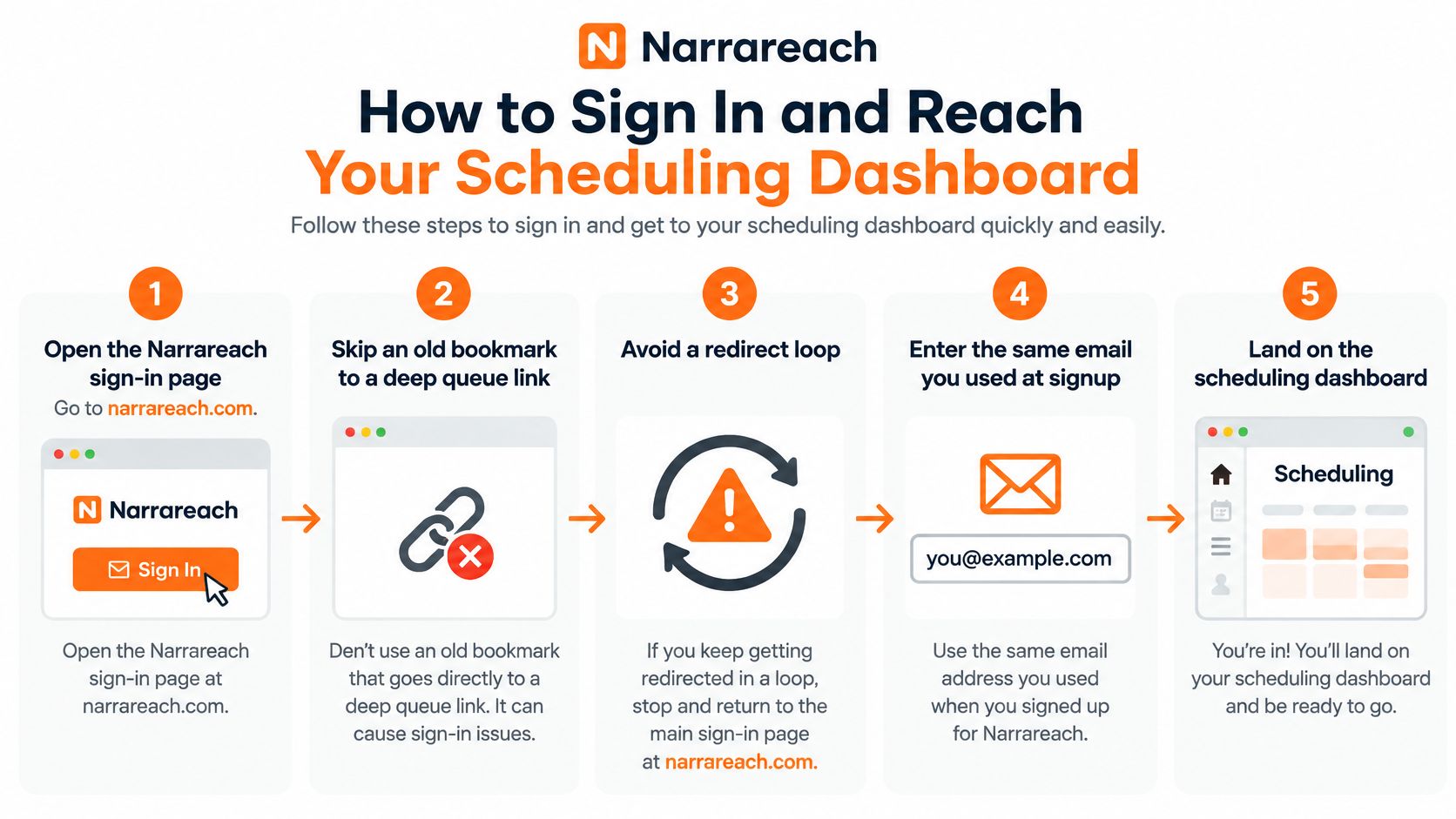
Start at Narrareach's main website rather than an old bookmark pointing deep into a queue. A saved workspace address can carry obsolete navigation or session information, so returning to the main entry point removes an unnecessary variable.
The sign-in sequence should end with a visible queue, the correct channels, and today's date.
Use the identity that owns the queue
Choose your original sign-in method. Enter the email used at signup. If you originally selected Continue with Google, use that route before attempting a password reset. Google sign-in and password sign-in aren't interchangeable in every service, even when the displayed email looks familiar.
Complete verification without stacking requests. If two-factor authentication is enabled, request one code and allow the displayed countdown to finish. Repeated requests can make it difficult to distinguish the current code from an older message. Never send a code to someone offering to troubleshoot your account.
Finish workspace setup if this is your first visit. During workspace creation, sign up or sign in with your preferred email, select the channels you use, invite teammates, and set brand presets. Our getting-started guide provides the setup path. Don't create another workspace merely because the current view looks empty.
Open the queue and inspect its filters. Set the date range to include today. Check the workspace selector and channel filters before concluding that scheduled content has disappeared. An empty filtered view isn't evidence that your posts were deleted.
Match your mobile identity to desktop. Open Account and compare the account email and workspace. On mobile, connect each destination from Account and confirm that it shows Ready before scheduling.
Keep separate services separate
If your workflow also includes Clipatra, use the Clipatra account sign-in for that service rather than trying its credentials in the scheduler. Separate browser tabs and clearly named password-manager entries prevent a surprisingly easy identity mix-up.
With Narrareach's MCP connector, authorization happens through OAuth sign-in. Generated Notes and reply drafts appear for your review first, and nothing is scheduled or sent until you approve it.
A practical completion check: You can see the intended workspace, recognize its channel list, and locate a known queued item under the correct date. That's stronger evidence than reaching a dashboard.
Login Errors Decoded and How to Clear Each One
Smart scheduling login symptoms, causes and fixes
The times below are troubleshooting allowances, not guaranteed repair times. Destination wording and authentication behavior can differ by platform.
| What you see | Likely cause | Fix | Time to fix |
|---|---|---|---|
| Password reset email never arrives | Spam filter, or account created via Google sign-in | Check spam, wait 10 minutes, then try Continue with Google | 10 min |
| Invalid email or password | Autofill from an old account, caps lock, trailing space in pasted password | Type the password manually in a visible field on a trusted device | 2 min |
| Two-factor code rejected | Device clock out of sync | Set device time to automatic, request one fresh code | 3 min |
| Bounced back to sign-in repeatedly | Stale session cookies | Clear cookies for that domain only, sign in again | 3 min |
| Account not found after teammate invite | Invite accepted with a different email address | Accept from the invited email, sign in with your own account | 5 min |
| Dashboard loads blank after login | Browser extension conflict | Test in a private window, disable extensions one by one | 5 min |
| Signed out every few minutes | Browser blocking cookies or aggressive privacy mode | Allow cookies for the scheduler domain | 2 min |
| Destination flagged reconnect needed | Platform authorization token expired | Reauthorize that channel from Account, confirm Ready | 4 min |
Make one controlled change at a time
These symptoms suggest causes; they don't establish them. An expired or superseded code can fail even when the device clock is correct, and a blank dashboard can also reflect a loading or service problem.
Before clearing site data, copy any unsaved text into a document. Clearing cookies signs you out; clearing broader storage can also remove locally retained work. Use the browser's site-specific controls rather than wiping every website's cookies.
A private-window test is useful because it starts with a separate session and commonly excludes extensions unless you've explicitly enabled them. If that window works, inspect the normal browser profile rather than resetting your password again. If neither window works, repeated cookie clearing is unlikely to help.
Know when to stop retrying
I would stop after two full attempts and one private-window test within a 15-minute troubleshooting window. Contact support with the exact error text, timestamp and timezone, browser, account email, and the step that fails. Our FAQ is another place to check for the relevant workflow before making further changes.
Repeated failures can trigger temporary security restrictions. Don't assume a fixed lockout duration, and don't keep testing credentials while a restriction is displayed.
A login error identifies which gate needs attention: account access or destination authorization. Reset a password for the former; reauthorize a channel for the latter.
Never attach passwords, recovery codes, authentication cookies, or access tokens to a support message.
Confirming Your Channels Are Ready Before You Schedule
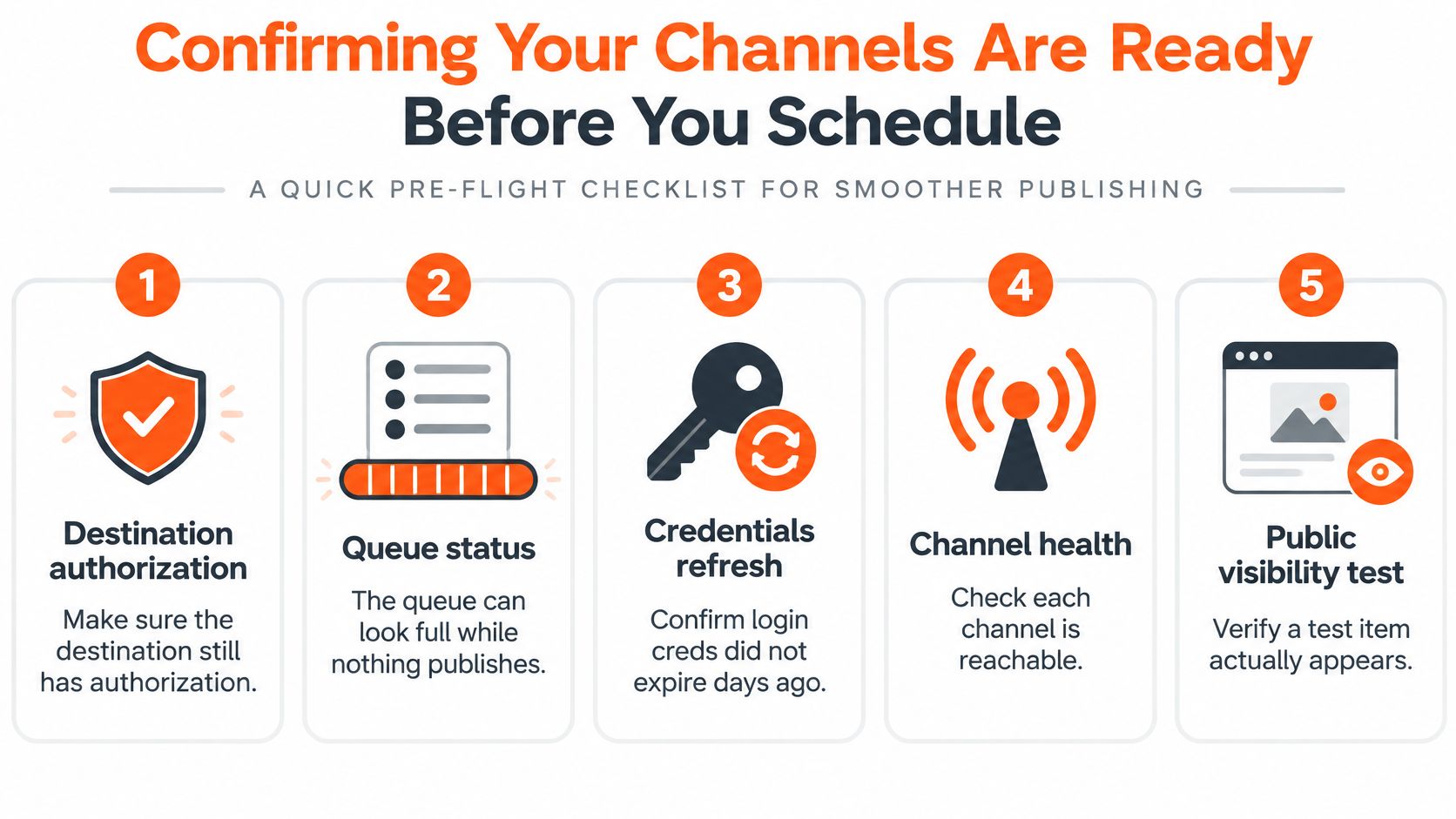
The most misleading failure is a healthy-looking dashboard with a full queue and no successful publishing. You can still edit content while a destination has lost authorization, so access to drafts isn't a publishing test.
Use the destination state and a public visibility check together. Neither a populated calendar nor a saved draft proves that the platform accepted the item.
Run a publishing preflight
- Destination status: Every intended destination reads Ready in Account. Our integrations guide helps you identify the connection you're checking.
- Public test: Schedule one suitable test Note 10 minutes ahead, then confirm it appears on Substack. Use something worth publishing, not disposable test text your readers will receive.
- Timezone: Confirm the queue uses your intended audience-facing timezone, not an unexpected travel setting from your laptop. Check the displayed publication time before saving.
- Scheduled state: Inspect the platform label, destination, and scheduled status. A draft sitting on the calendar isn't necessarily committed for publication.
- Connection owner: Confirm that teammate-created articles use the intended owner's connection, especially when several publications or brands share a workspace.
Once a Substack Note is scheduled, it can publish without your computer staying on. A closed laptop isn't the explanation for a missed server-scheduled Note; inspect the item's status and destination instead.
Share access without sharing passwords
A VA accepts the email invitation and signs in to their own Narrareach account. They don't need the owner's Substack password, and the owner's platform logins stay with the owner.
An Author writes and schedules articles. A Manager also handles connection-refresh responsibilities and views analytics, but owner authorization remains necessary for reconnecting an account; posting Notes and publishing immediately also remain owner-only. For example, a Manager can schedule an article through the owner's Medium or LinkedIn connection without taking ownership of that platform login.
If Team workspace is missing from Settings, choose Request team access. Team workspaces require a team-enabled plan.
Before resubmitting: Open the destination and check whether the original item appeared. A delayed status update shouldn't become a duplicate post.
A brief status inspection can protect the rest of the week's queue, although the public test needs its own waiting time.
Habits That Keep You Signed In and Publishing
A steady publishing routine depends on two separate checks: getting into Narrareach and confirming each destination is still authorized. A working scheduler session does not guarantee a connected platform can publish. Use batching and cadence controls to reduce daily manual work, then check destination status before scheduling.
Batch while the session is healthy
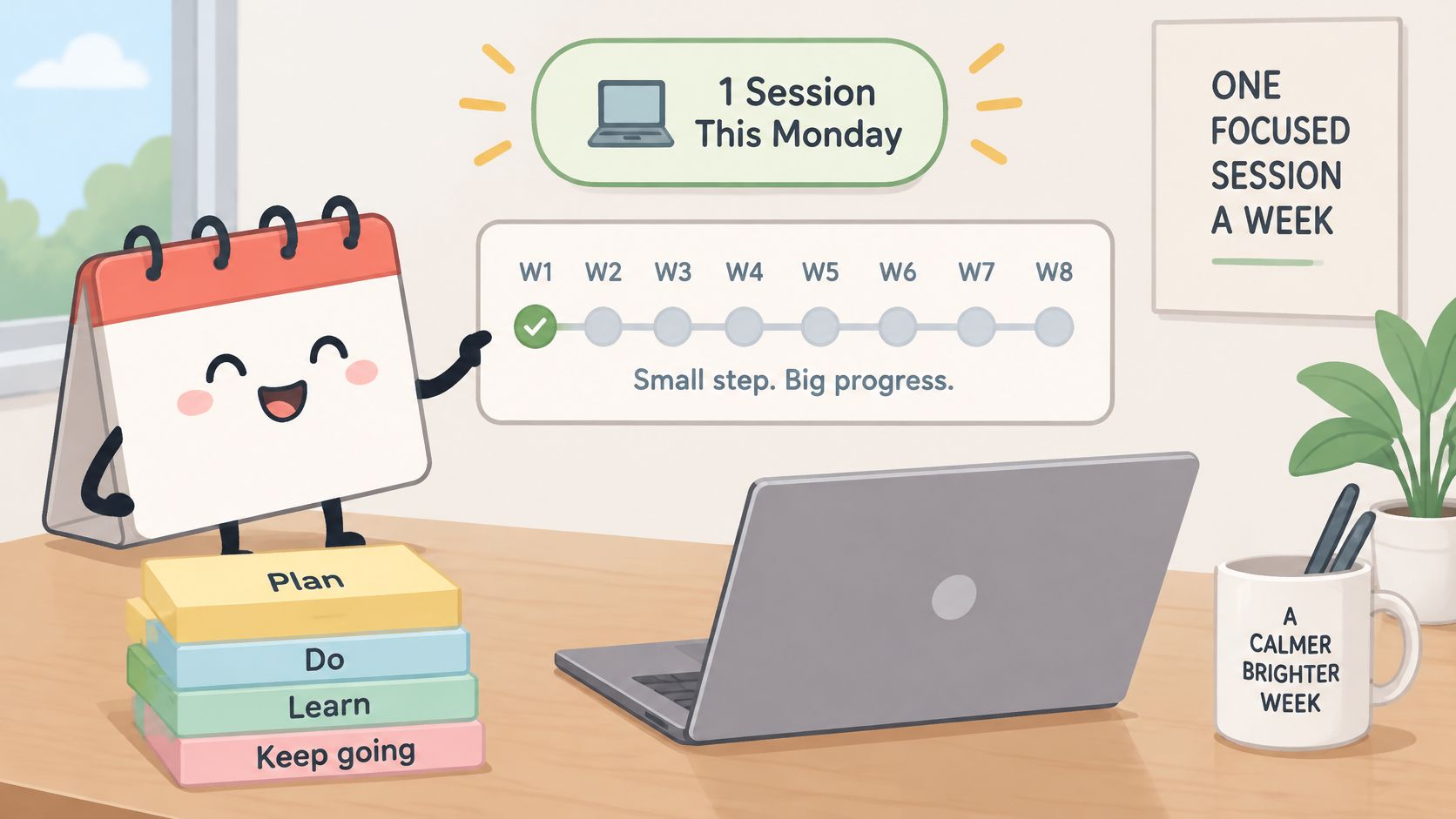
For a worked example, set aside 45 minutes on Monday to prepare 12 Substack Notes, two Medium articles, and five LinkedIn posts. Treat that as a sample workload, not a guarantee that every writer can complete it in that time.
Import a CSV, assign each row a platform and publication time, and attach Google Drive images during bulk scheduling. Review image access and previews before adding the batch to the queue. A file that opens for you may still need attention in the publishing workflow.
Batch scheduling makes distribution less dependent on daily manual effort, while cadence controls help keep output consistent. Editorial review still matters: an outdated reference, repeated link, or poorly cropped image can be scheduled just as easily as a polished post.
Measure the result honestly
Keep a simple log to see whether the routine is reducing interruptions and what still needs attention:
- Interruption: Record the symptom and whether it involved scheduler access or a publishing destination.
- Effort: Separate troubleshooting time from writing and editing.
- Outcome: Note whether the item published, needed intervention, or was intentionally postponed.
Check destination health before preparing a batch, and revisit connections after a platform security change rather than waiting for a reminder. If you are changing access practices, review Narrareach's security and privacy information. Keep two-factor authentication enabled.
The practical payoff is fewer unplanned publishing tasks and a cadence you can maintain, leaving more attention for replies, stronger ideas, and content that helps readers decide to subscribe.
Your Next Move Once You Are Back Inside
If you're still locked out, send support the exact error text, timestamp, browser, and account email instead of continuing to retry. Keep writing in a document, and maintain a separate list of anything you publish manually so recovery doesn't produce duplicates.
If you're back inside, schedule the next seven days of Substack Notes and one article while the session is healthy. Every plan schedules Substack Notes and articles. Review our publishing reliability information, and leave room in the calendar for timely writing rather than filling every available slot.
Choose the next step that fits
Ready to try a batch week? Start free with no credit card required. Schedule Notes, Medium articles, LinkedIn posts, and X content from one dashboard, use voice-matched AI repurposing to adapt an article into shorter posts, and examine cross-platform analytics to see which content drives subscribers. A 15-minute walkthrough is available without a forced demo.
You can also automatically recirculate approved articles, Notes, and social posts on a schedule you choose. Approval matters: evergreen material still needs an editorial check before you decide it belongs in rotation.
Not ready to switch workflows? Bookmark the symptom table and subscribe for the next teardown. Keep the troubleshooting checklist available independently of whichever scheduler you use.
Narrareach brings scheduling, repurposing, and distribution into one workflow so getting back into your account leads to a usable publishing week, not another round of manual posting. Visit Narrareach to try a batch, or keep the checklist bookmarked until you're ready. Aim for fewer clerical hours, more consistent publishing, and more opportunities to grow your audience.